Showing posts with label iPhone. Show all posts

Thursday, March 30, 2017

Study Techniques for Busy People

On top of my usual teaching load and working through my Experienced Teacher Accreditation, I thought I'd finish off my Masters in Education Leadership this year! I knew that it would make for a busy year, but I don't think I realised just HOW busy things would be. As I started first semester at University, I had to get used to the whole online environment and figure out how to get the readings for my classes. One of my biggest struggles has been finding time to do the readings, so I decided to get creative with how I do this. Here's what I worked out:


Let Siri do the reading 

I don't live too far from work, but each day I have over an hour of commute. Ordinarily I have used this time for listening to podcasts or enjoying some of my favourite songs. I now use this time to listen to the readings I need to get done.

Step 1: Download the readings and send them email you can access on the iPhone or iPad.

Step 2: Go into email, download file and import with iBooks.


Step 3: Change settings. Go into General, then Accessibility, then Speech. Toggle Speak Screen.

Step 4: Open the reading in iBooks. When the reading is displayed, scroll down from the top of the page using two fingers. This will bring up a control bar and Siri should begin reading the page.

Siri doesn't pronounce all words correctly, and I found it amusing that she struggles with some words that a techy 'person' should know - like ICT and "geeking out" and "technologies". Ideally it would be great to be able to teach Siri how to pronounce the words that she is getting wrong. Perhaps this is something Apple will build in at a later point in time.


Annotate the readings with Notability

I got a new iPad for Christmas, with the intention that it could help me through my studies this year. So far I've been really pleased with how it's working out for me, and I LOVE having the Apple pencil. After I have listened to the readings, I need to return to them in order to prepare a response for the assessment of the course. I like to be able to scribble down ideas and highlight the important parts to come back to. For this I use Notability, and then I don't have to cart around a pile of papers everywhere. Please note, this is an app that needs to be purchased from iTunes.


Step 1: Go back to the email I sent the readings to.

Step 2: Import the reading with Notability this time.

Step 3: Go into Notability and respond to the dialogue box - either select the pages you want to import, or import the whole thing.

Step 4: Open the file and make notes using the available tools. I prefer to handwrite and use highlighter, but you could add text or post-its if that is your preference. For my other posts about using Notability, go here.


Build a YouTube Playlist

There have been a number of YouTube videos as part of my course materials this semester. Again, these are things that I would prefer to listen to "on the road" or walking my dog, rather than eating into official study time. Making a playlist to store these, and logging into YouTube on the various devices I use means that I can access the videos easily wherever I am.

Step 1: Log into YouTube.

Step 2: Go to a video you want in the playlist.

Step 3: On the bottom left, select "Add to", then at the bottom of the dropdown box choose "Create New Playlist".


Step 4: Enter a name for the playlist and select Create. Your video can now be accessed within that playlist, in your "library".

Step 5: To access your playlist on your mobile device, log into YouTube with the same account, select the Library tab. Find your playlist and play your video.


Another benefit of logging into YouTube is that it will suggest other relevant videos, given what you have been watching. This can help to provide further exploration and depth when researching the topic.

The next thing I need to find a short-cut for is collecting citations for the texts I use. I have been using the Citation Machine to help with this, but I really should get better at collecting the citations as I go, rather than having to chase that up when I use them in my work.

Do you know of any other time saving study techniques that you could share to help other busy people?

Tuesday, October 21, 2014

Tech Tips Tuesday


What NOT to do with your iPhone 6, and then how to go about fixing it...

My husband spoilt me by getting me the iPhone 6, just after it was released, and went to great lengths to do so as he was interstate at the time, and I was preoccupied with all things reports. It was an awesome feeling to be finally finished the reports and able to crack into my new iPhone, delivered to me by my mother in-law. I loved it at once, and ignored all the bad feedback it was getting about bending in people's pockets. 

My little guy got my iPhone 5 as a hand-me-down and he too was on cloud nine, enjoying all the new possibilities. Life was sweet until... it fell out of my pocket and landed in ... the 'sink'. Ok. So it was the toilet. How can anyone be so careless with something they claim to love so much? I don't know, but what I do know is that in situations such as these, there is no time to pause and contemplate how stupid it was. And so, for those of you who make the same stupid mistake, you have no time to lose. 

Here's what to do:

Step 1: Get the phone out of the toilet. Yes, it's gross, but you have to do it at some point, so just do it.

Step 2: Turn it off. You don't need to watch it die. For me, even though only seconds had passed, the screen was already glitchy, and turning off was easier said than done. Remember that you need to slide along the top of the screen after holding down the power button.

Step 3: If it's in a case, remove it from the case, and wipe it down with toilet paper.

Step 4: Put your phone in a bag of uncooked rice. I put about a cup in a zip lock bag - enough to cover my phone completely.

Step 5: Leave it in the bag to dry out. This is the hardest step. 
Not just a bag of rice!

The results:
After 1 day it had a glitchy screen with white, grey, and black lines and was completely unreadable. I tried to turn it off again and put it back in the bag.
After 2 days the phone needed charging. At first it looked like it was all good, but there was a dark patch in one section, and the text became blurry within a few minutes.
After 4 days, the sceen was great, and functionality was restored, but the sound when holding the phone to the ear, was not. I tried using compressed air to clean the speaker but to no avail. I decided to start using it again anyway, relying on speaker phone when making calls. 

Over the next week, the ear piece went through a stage of buzzing, finally becoming clear and functional. Hooray!

After a quick look at Apple's support website, it appeared that they would be able to fix the problem outside of warranty for just under $400 in Australia. I was seriously considering this option at day 2, but am obviously glad to have been able to wait it out and save the money.

Sunday, August 30, 2009

Hunting for Treasure

Today I finally got around to trying geocaching. I've been hearing about other people in my PLN who have tried this out, and I thought it sounded like a bit of fun.

So what is geocaching? Geocaching is a treasure hunt with a GPS. You are given the location for a hidden cache and some clues to get you started. You head off with your GPS (or in my case, my iPhone) and start searching. The cache may vary, but generally consists of some form of logbook and may have small items you can trade.

To get started, you sign up for an account at www.geocaching.com. I also bought the Groundspeak Geocaching App for my iPhone ($12.99 but very helpful on my hunt). Groundspeak took my location and found some hidden geocache points close by. I followed the arrows, and then as I got closer, had to rely on my eyes and brain a lot more.

I took along my hubby, his mother and our dog. It was an adventure for all of us, and we were very glad to have found the two caches we set out to find.

If you haven't tried it out already, I recommend it as a fun way to spend some time.

Tuesday, July 7, 2009

7th Teaching K-6 Carnival


Welcome to the July edition of the Teaching K-6 Carnival. This month I've had a number of posts relating to professional development for teachers - with plenty of opportunities to expand your skill base during the Northern Hemisphere summer months. Because of this, I've included a "Reflect and Rejuvenate" category this month. For those of us in the Southern Hemisphere, you might find something here to inspire you to keep on powering through those wintery blues!

Reflect and Rejuvenate

Not yet a teacher? Considering it as a career option? Alvina Lopez shares Where Can I Find Teacher Scholarships? posted at Smart Teaching. Want to explore the world while studying? Anne Simone presents 100 Free and Useful Web Tools for Students Abroad posted at Best Universities.

If you're yet to discover the wonders of TED Talks, don't wait any longer. There's so much great material here that's easy to watch and very informative. Emma Taylor has sifted through these and offers 25 TED Talks That Will Change Your Life posted at Online Degree Hub.

If you're up for a bit of self-reflection, Susan White has the place for you at 100 Free Quizzes for Your Self-Improvement and Awareness posted at Online College Reviews - College Ratings. Take it a bit further to improve your health with Pankaj Gupta's 10 Little Known Ways to Improve Your Health posted at Best ultrasound technician schools.

Brain Strain

There are many differing opinions on the way that we coax certain behaviours from children. This month Keith Tusing shares his views on Rewards & Bribes posted at CM Buzz. Be sure to share your opinion and keep the discussion rolling. While you're over there, also check out Who is Your Target? to read how Keith is keeping children K-6 engaged in his Sunday School program.

In a knowledge society, lifelong learning is more important than ever. Brooklyn White presents 9 Tips for Being a Lifelong Learner posted at Accredited Online Universities. Reflect on how you're going with this, and consider how you can support the children in your class to become lifelong learners.

At times we all struggle with time management. But how do students learn this all important skill? This month Meaghan Montrose shares Effective Learning Strategies and Study Skills- Part 4 posted at TutorFi.com.

In the News

Mathew Needleman has written some informative posts about our roles as educators at Open Court Resources.com Blog. In It’s Not the Curriculum, It’s Us he reminds us to quit shifting blame, and to take responsibility for creating engaging learning experiences. In Copyright for Teachers: Persistent Myths he gives a few tips on what we should and should not be doing in terms of copyright in the classroom.

Innovate - Beyond the Slate

Skype has opened up numerous options for communicating across the globe. This month Emma Taylor presents 50 Awesome Ways to Use Skype in the Classroom posted at Teaching Degree.org. This is a comprehensive resource for teachers who have access to Skype in their classrooms.

Innovation is not just about technology. In creating an engaging and dynamic learning environment for our students, we should be drawing on a range of resources and learning experiences. Wendy Piersall shares Plant Life: How Do Plants Grow? posted at Craft Jr., which provides hands-on activities for students to explore the life cycle of plants.

Over at Teaching Degree.org Anne Simone shares 100 Terrific Cheat Sheets for K-12 Teachers.

Look No Further

Here are a couple of iPhone related posts that might be useful for educators with iPhones:

Alvina Lopez presents iKnow: 100 Best Reference Tools for Your iPhone posted at Online Degree Hub.

Emma Taylor presents 100 Awesome iPhone Apps to Work and Study from the Beach posted at Online College Reviews - College Ratings.


Why not submit your post for the next carnival?

The Teaching K-6 Carnival is posted monthly on the 7th. I am collecting submissions throughout the month, looking in particular for posts that discuss and exemplify innovative teaching and the integration of technology in the K-6 classroom. I also invite a few "brain strains" to keep our minds alert and challenged. Please submit only articles of which you are the author and refrain from using this merely as a sales pitch. For full details, please read my call for submissions.

If you have a relevant post that you would like to submit to the next edition of teaching k-6 carnival use our carnival submission form. Past posts and future hosts can be found on our blog carnival index page.

Support this Carnival

If you enjoyed this edition of the carnival, you can support its continuation by sharing it with others. Link to us, add us to a tweet, stumble or digg us. Thanks!

Tuesday, March 31, 2009

Tech Tips Tuesday

This Week's Tip: Making the Most of Dictionaries

I've been marking English books this week, and as any teacher knows, the more you look at misspelled words the more confused you become about correct spelling. Paired with that, I am trying to encourage my students to use more sophisticated words in their writing. I've found the free Dictionare on my iPhone to be quite handy in dealing with this quickly. iPhones seem to be the gadget to replace all gadgets these days, so if you have one, I'd recommend grabbing a free dictionary app for the purpose of spell checks. I've recently downloaded iThesaurus as well for all my synonym needs! Just for fun, I downloaded Word Twiddle (for $2.49) which will allow me to play with words a bit. This might make for a bit of fun with my literacy class, or at least get me thinking a bit more about the wonderful world of words.

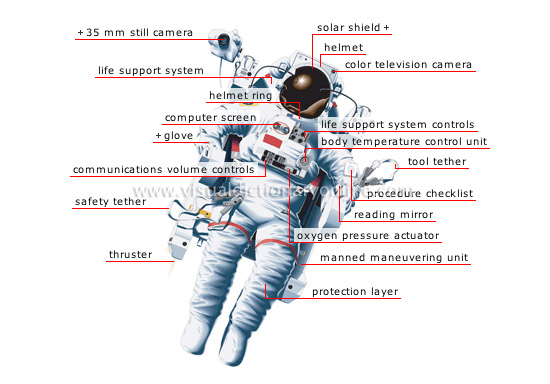
For those of you who don't have iPhones (yet), I also came across a great visual dictionary that I imagine will be great for teaching visual literacy. Think online-multi-themed-picture-dictionary-with-cutaway-images. The Merriam-Webster Visual Dictionary Online covers a number of themes from 'astronomy' to 'sports and games' and images can be embedded in blogs/websites. It also posts a weekly game for students which involves putting the labels in the right places. Thanks to Dominic P. Tremblay from Resources for Teachers for the tip about this resource. NSW teachers who are focusing on transport this term should definitely check out this resource for the relevant pages in the 'transport and machinery' pages. Here's a sample of the types of images available. I've chosen a spacesuit because my class will be investigating space exploration later in the year.

spacesuit - Visual Dictionary Online

Tuesday, December 2, 2008

Tech Tips Tuesday

I know I said that Tuesday was going to be for tips for parents and teachers about something I am covering with my class, but I've changed my mind! It's going to be too hard to maintain that during the holidays, so instead, I present Tech Tips Tuesday. On Tuesday you can find tips for integrating technology into the class or home.

This week's tip:
If you have an iPhone or iPod Touch, consider the free "Easy Relax" application. This application has theme 'soundtracks' that you can play in the background of your class. Themes include 'Into the West', 'Hawaii Vacation', 'Jungle' and a number of pre-programed soundtracks. Alternatively, you can create your own themes with background music and up to three extra sounds with self-selected intervals.
As an award to groups who are focused on their work, I have been allowing them to select a pre-programmed soundtrack or create a team soundtrack. It has been fun, a good behaviour reward and an easy way for students to program their own soundtrack. The soundtrack also adds to the flavour of the class and some students work more quietly just to hear the sound of the rain, thunder, croaking frog, or whatever else!
To amplify it across the classroom, I plug the audio cord that leads to the Smart Board into the audio socket on my iPhone - easy.
As a sidenote, I found it quite nice to fall asleep to one day as well!